
Document Workspace (Datasets)
Reference guide for the OCR Document Workspace — uploading, organizing, and managing documents and datasets.
Overview
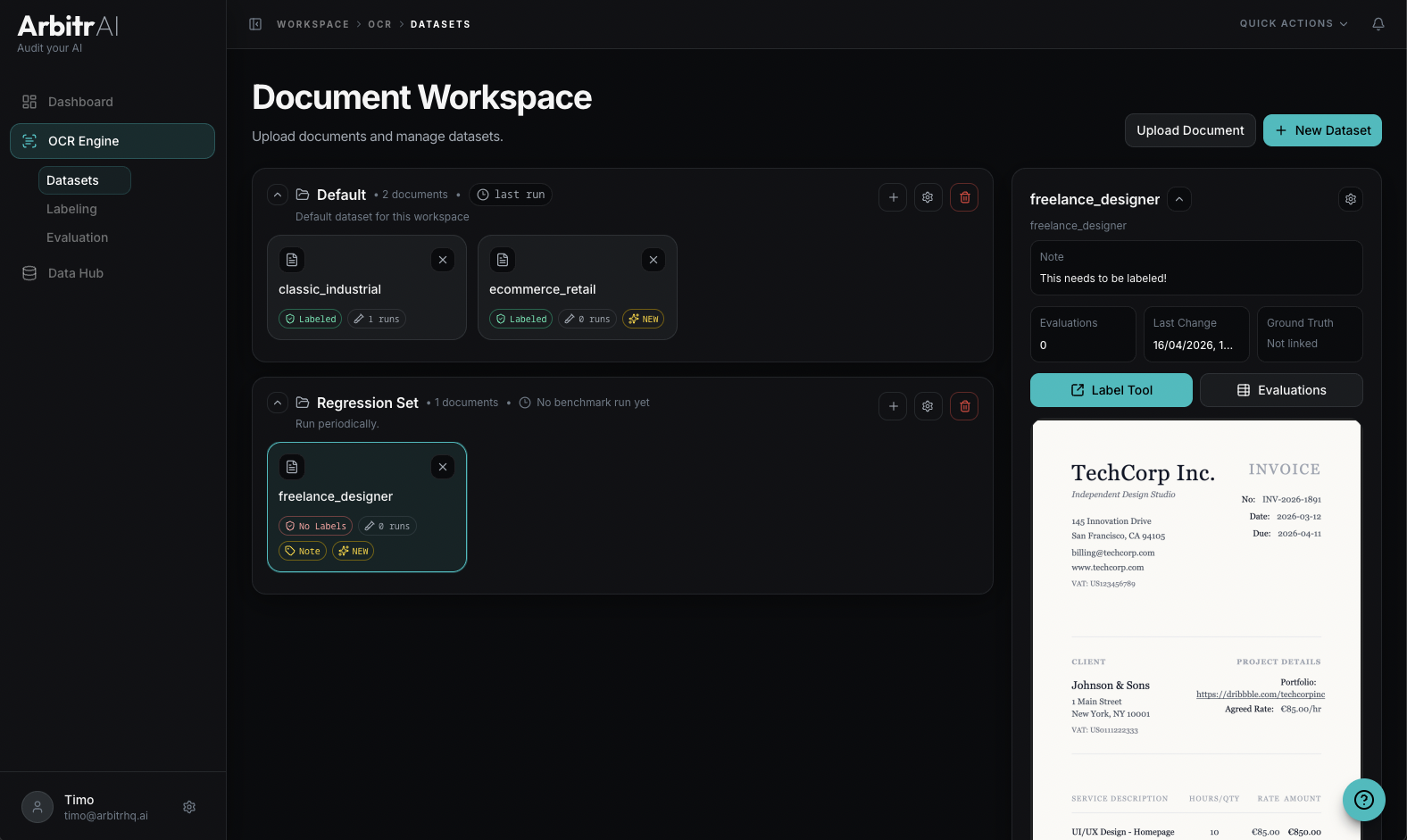
The Document Workspace is the Datasets tab under the OCR section in the sidebar. This is where you manage your entire document library — uploading files, organizing them into datasets, and communicate between different team members.
Dataset View
The main view shows all your datasets as expandable sections. Each dataset displays:
- Dataset name and optional description
- Document count — how many documents it contains
- Last run — when the most recent benchmark was performed on any document in this dataset
Click a dataset to expand it and see all its documents as tiles.
Document Tiles
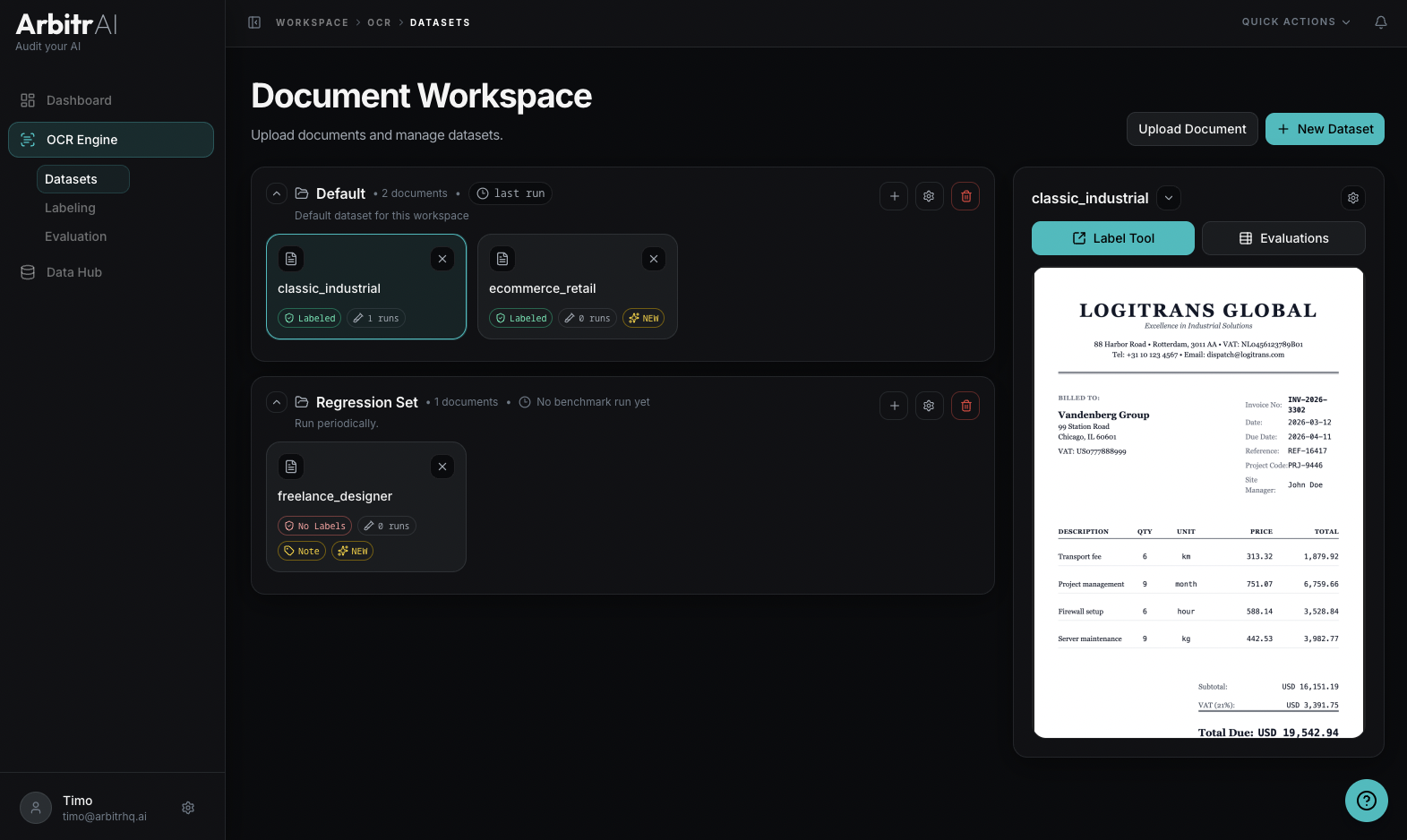
Each document tile shows at a glance:
- Document name
- Label status — a green “Labeled” badge if ground truth exists, or a red “No Labels” badge
- Run count — how many benchmark runs have used this document
- Note indicator — shows if a note is attached
- NEW tag — displayed if the document has never been evaluated
Click a tile to open the document detail view where you can edit properties, view metadata, see which datasets the document belongs to, and access the labeling tool.
Upload Documents
Use the Upload Document button to add new files:
- Select a file via the file picker (PDF or image)
- Set a document name (auto-populated from the filename)
- Choose a target dataset or create a new one
- Optionally add a note
Managing Datasets
- Create — use the Create Dataset modal (name + optional description)
- Rename / Update — edit dataset name and description
- Delete — removes the dataset; this is only possible when it holds no documents