
Upload & Manage Documents
Learn how to upload documents, organize them into datasets, and prepare for evaluation.
Overview
Before you can evaluate AI models, you need documents to test them on. The Document Workspace in the OCR section is where you upload, organize, and manage all your documents.
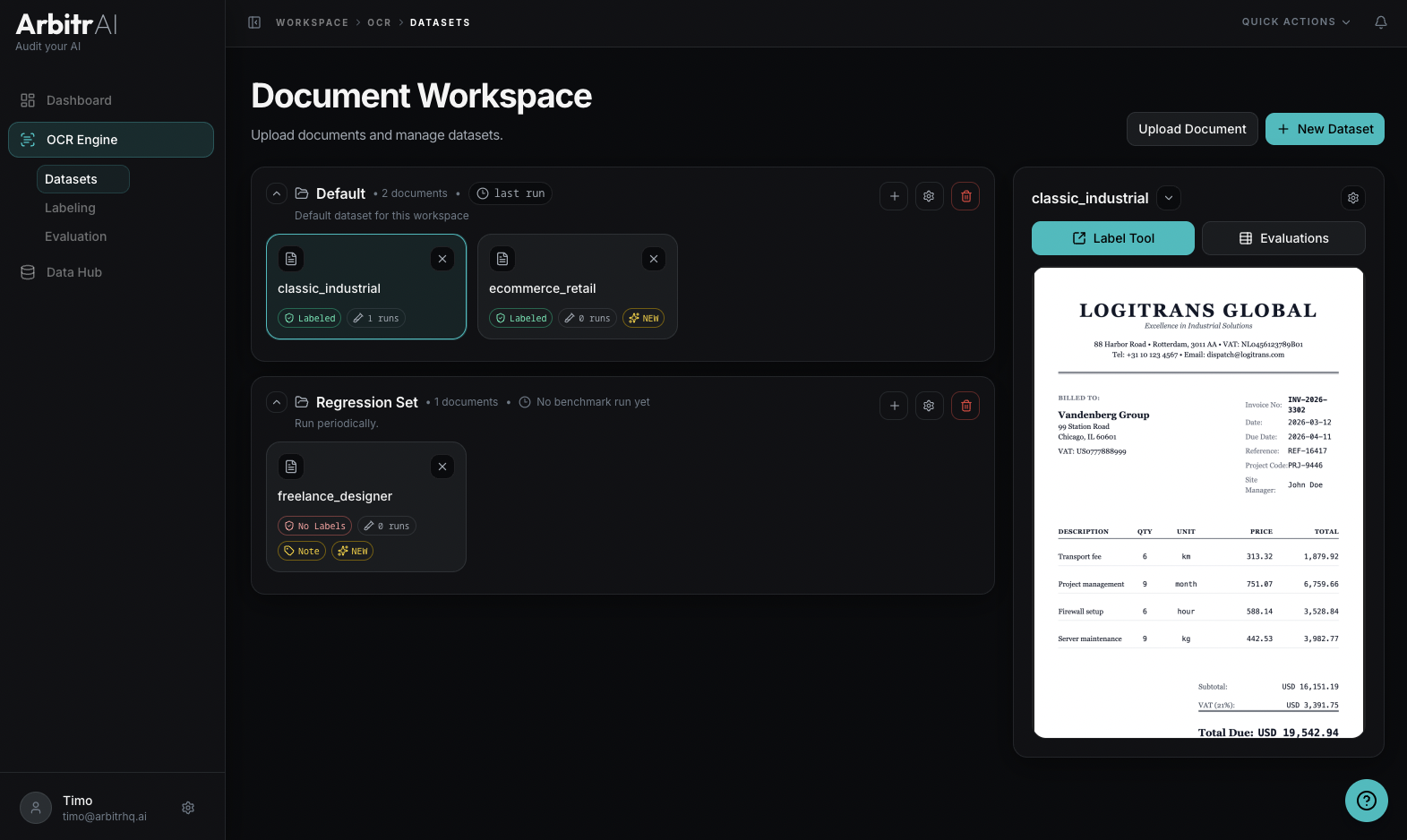
Navigate to the Document Workspace
From the sidebar, click OCR and then the Datasets tab. This is your document workspace — it shows all your datasets and the documents inside them.
Upload a Document
Click the Upload Document button in the top-right corner. The upload modal lets you:
- Select a file — drag-and-drop or use the file picker. Supported formats are PDF and common image formats.
- Name your document — auto-populated from the filename, but you can change it.
- Choose a dataset — select an existing dataset or create a new one.
- Add a note (optional) — attach a quick note for context.
Create and Organize Datasets
Datasets group related documents together for evaluation. To create a dataset, use the Create Dataset modal — give it a name and an optional description.
Each dataset shows:
- The number of documents it contains
- When the last benchmark run was performed
- An expandable view of all documents inside it
You can rename, update, or delete datasets. Deleting a dataset is only possible if it holds no documents.
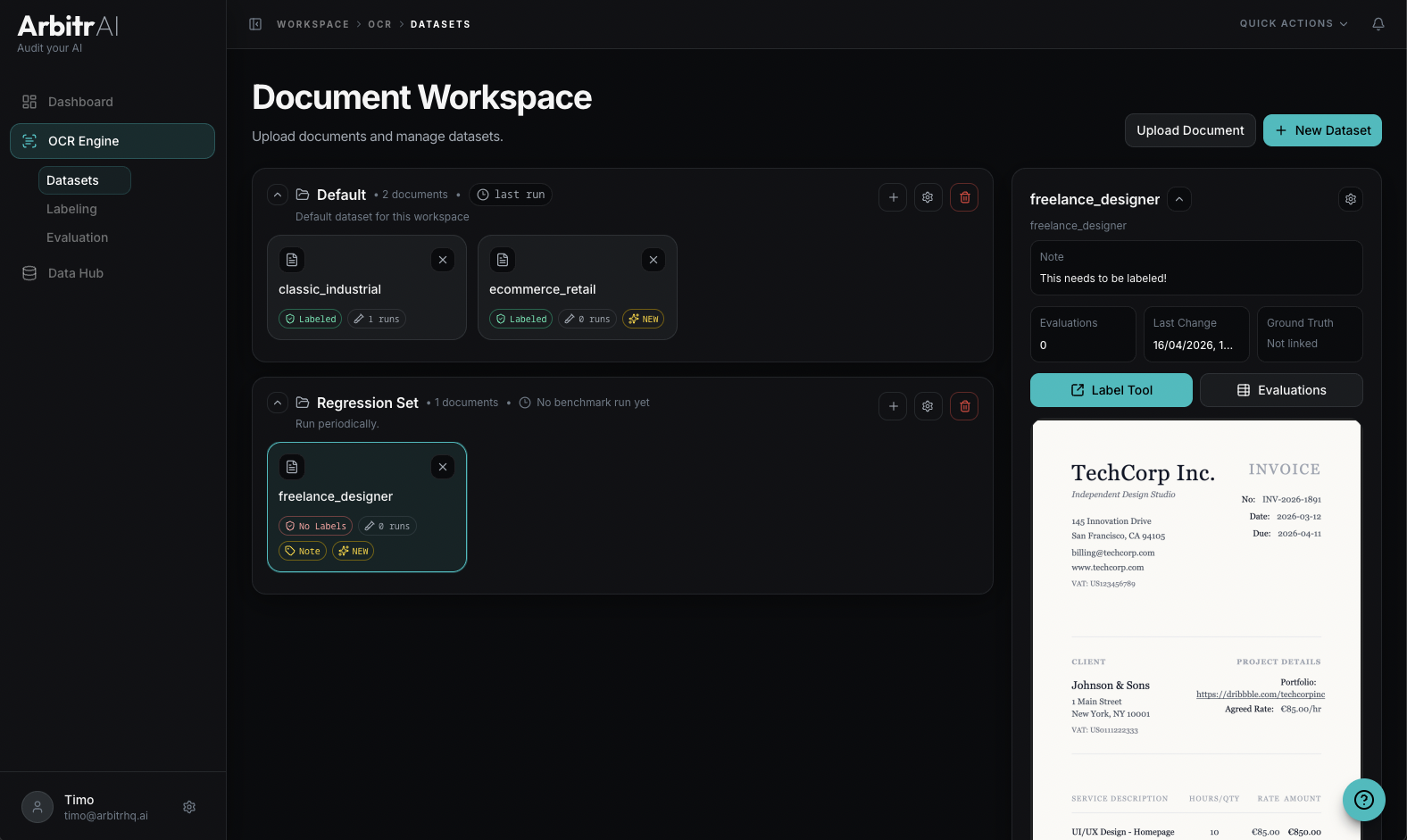
Document Properties and Status
Click any document tile to open its detail view. Each document has:
- Name — editable document title
- Source Filename — the original file name on upload
- File Type — PDF or image
- Dataset — which dataset it belongs to
- Note — optional context note
- Tags — custom color-coded tags for categorization
Document tiles also display status badges:
- Labeled (green) or No Labels (red) — whether ground truth labels exist
- N runs — how many benchmark runs have used this document
- NEW — if the document has never been evaluated
Tips
- Start with a small, representative set of documents before scaling up
- Use consistent naming for datasets — e.g., by document type, vendor, or difficulty level
- Add notes to documents to help your team understand why they were included
- Tag documents by type or source for more granular evaluation insights later