
Launch Evaluation Run
Walk through the four-step wizard to configure and launch a benchmark evaluation run.
Overview
A benchmark run tests one or more AI models against your documents. The launch wizard guides you through configuration in four steps. You can start a new run from the Evaluation Hub (under the Evaluation tab in the OCR section) or directly from a dataset.
Step 1: Documents
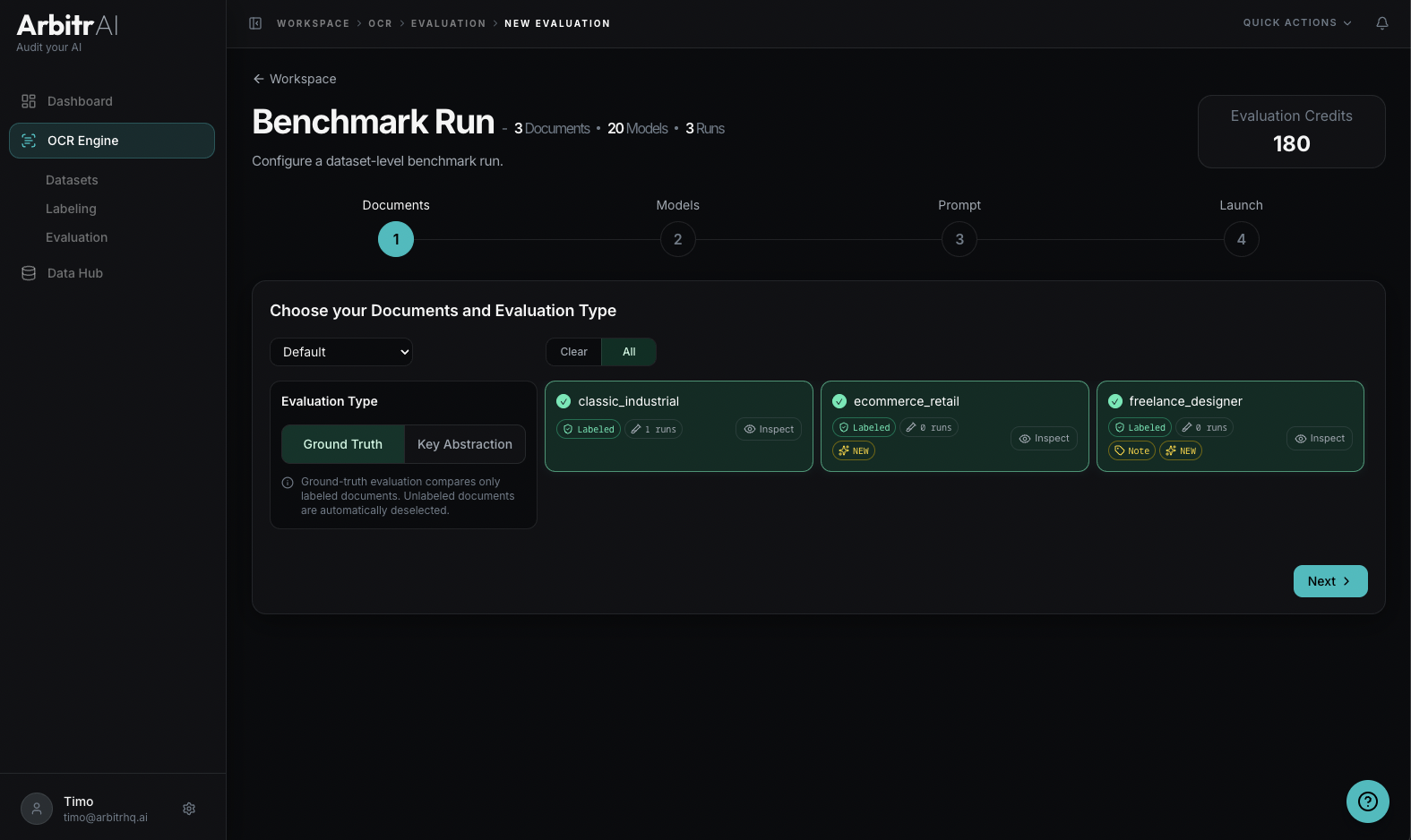
Select which documents to include in the evaluation. All documents in the dataset are selected by default — you can deselect individual ones.
Choose your evaluation type:
- Ground Truth — compare model output against your labeled ground truth data. Only available for documents that have labels.
- Key Abstraction — the AI first discovers what keys exist in the document, then has other models find the same keys and compares performance.
The wizard shows how many documents are selected (e.g., “8 Documents selected”), which directly influences the total evaluation tokens.
Step 2: Models
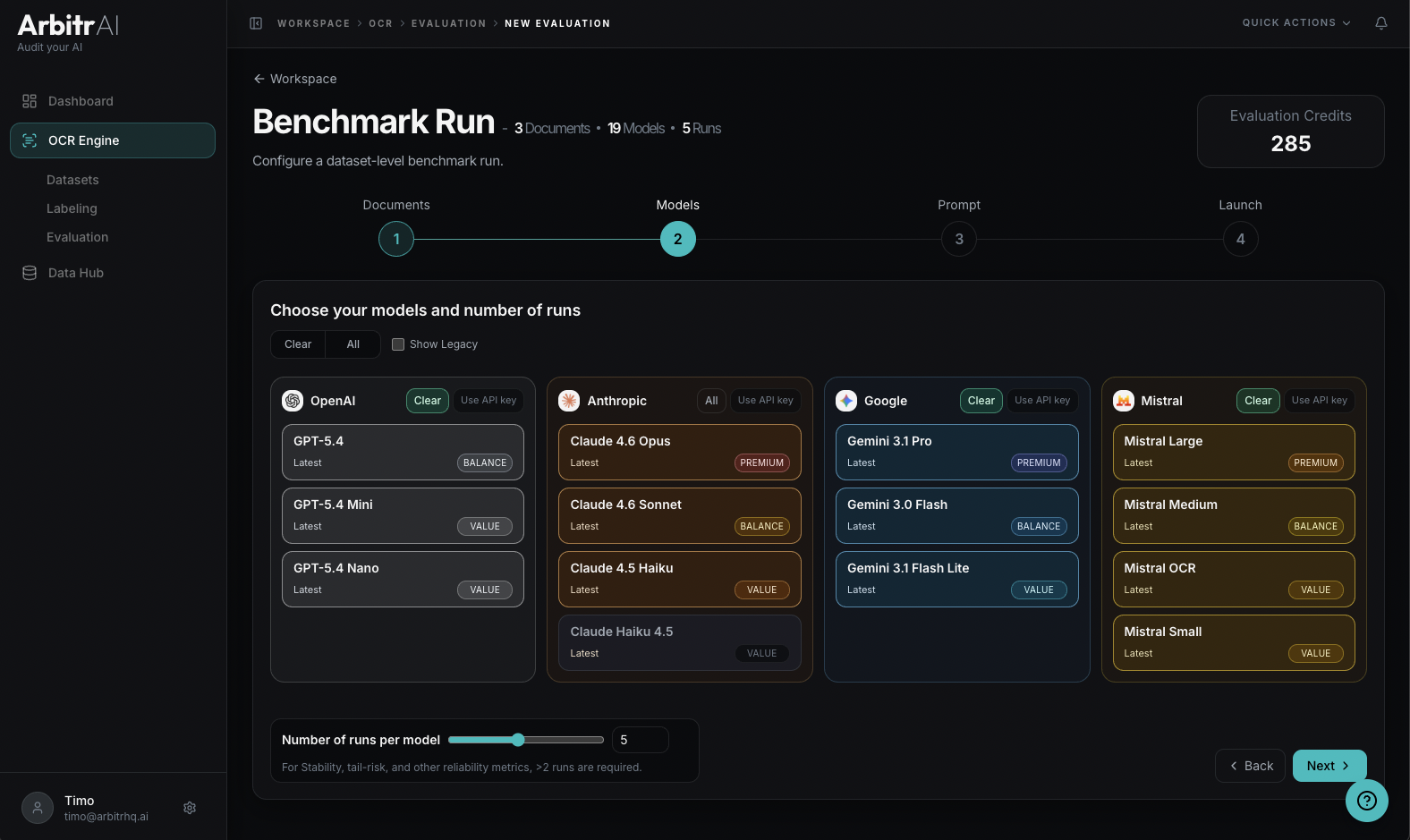
Select which AI models to test. Models are grouped by provider:
- OpenAI
- Anthropic
- Mistral
By default only the latest models per provider are shown. Legacy models - which sometimes yield identical results for a fraction of the cost - can be shown by checking the corresponding checkbox.
Set the runs per model — how many times each model processes each document. More runs enable reliability metrics like variance and confidence intervals. The default is 3 runs, minimum 1.
Each model shows its tier classification: Value, Balanced, or Premium, indicating the trade-off between performance capabilities and cost.
Step 3: Prompt
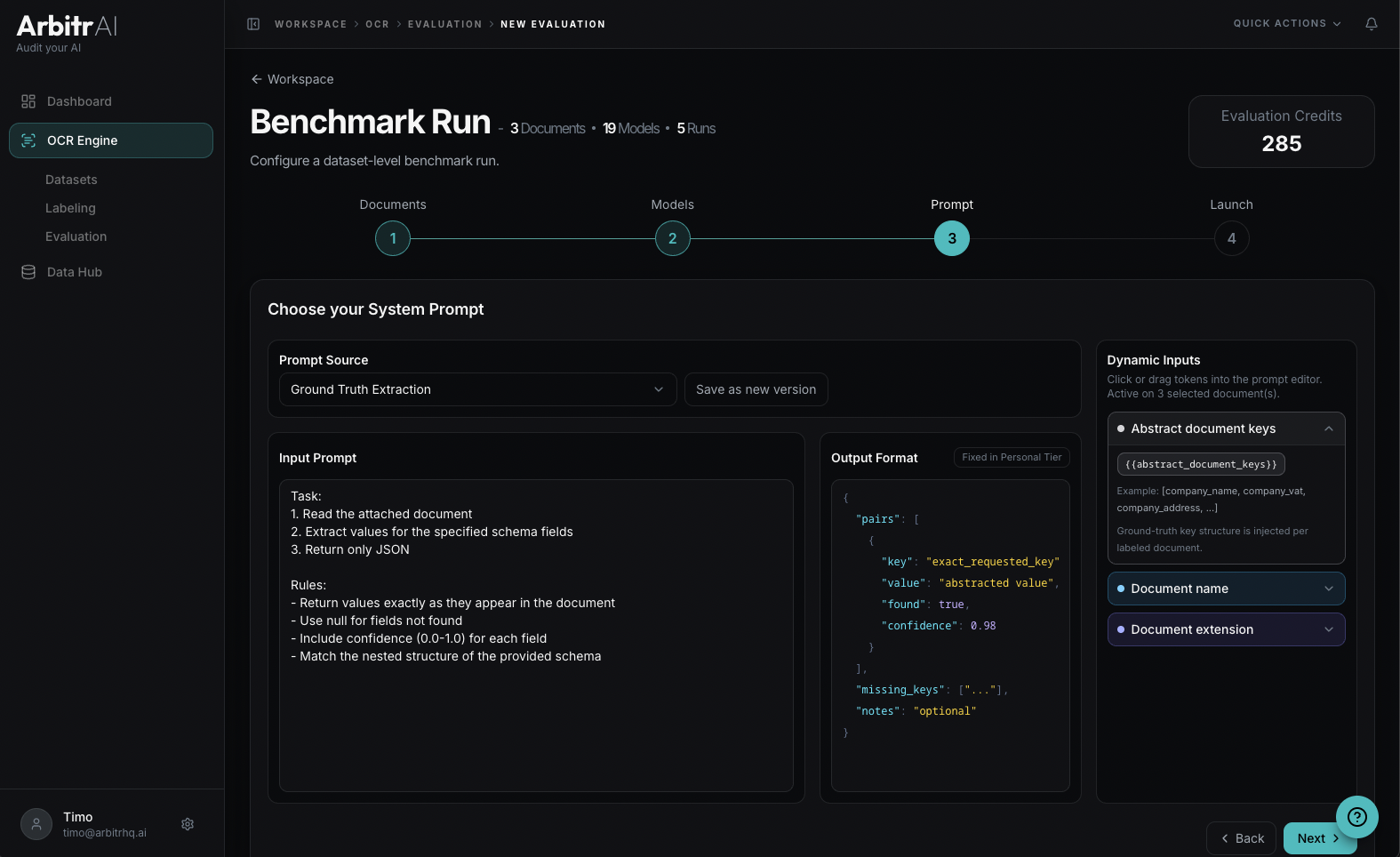
Configure the system prompt that instructs the AI models. You can:
- Select a saved prompt from your prompt library
- Edit the prompt inline — modify system instructions, task instructions, and output format
- Save as a new version if you’ve made changes
Prompts support dynamic input tokens that get resolved per document:
{{document_name}}— the document’s name{{document_extension}}— the file extension{{abstract_keys}}— the keys from your ground truth labels (in Ground Truth mode)
The prompt editor shows which tokens are available and how they’ll be resolved.
Note: We strongly advice you adopt the default ArbitrAI prompt to start out. Custom output is only available in Team Tier.
Step 4: Launch
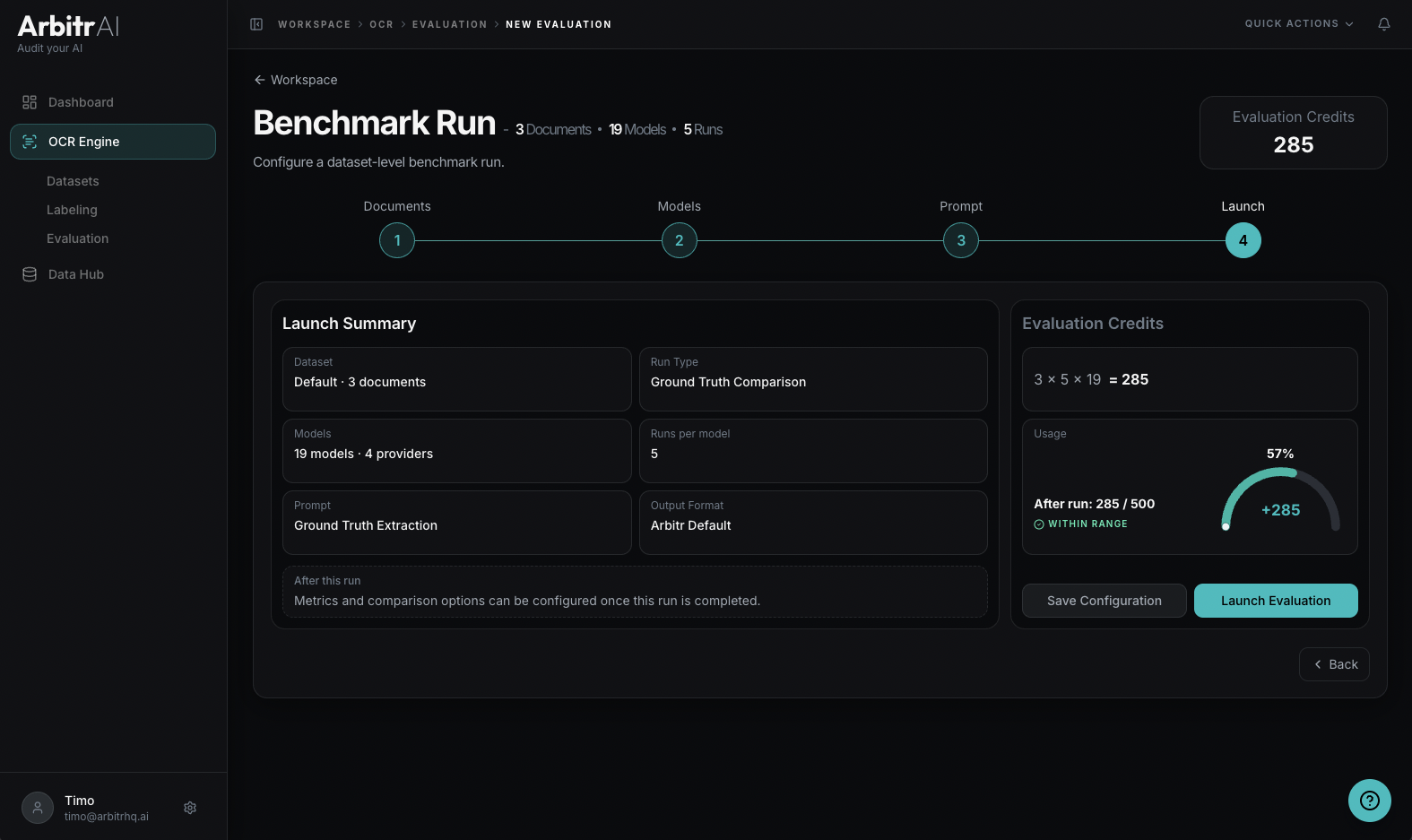
Review your complete configuration before launching:
- Run Type — Ground Truth Comparison or Key Abstraction
- Documents — count and names
- Models — count and providers
- Runs per model — total individual runs
- Metrics — any metric can be chosen after the run (some metrics require multiple runs)
- Token usage — token usage for this run
A usage indicator shows your current evaluation token balance and what it will be after the run. Each evaluation token covers 1 document x 1 model x 1 run.
Click Launch Evaluation to start the benchmark.
Tips
- Start with a small dataset (3-5 documents) to validate your configuration before running on larger sets
- Compare at least two model configurations to get meaningful relative performance insights
- Use descriptive names for your runs so you can find them later in the Evaluation Hub
- Running 3+ runs per model unlocks reliability metrics like coefficient of variation and percentiles